Scenario: Friday, 7:30 p.m. Counter seats A and B are mid-meal, a booked party is due any minute, and two walk-ins just came through the door. The Floor page is your command post for exactly this moment — every phone and tablet on the floor shows the same screen, and when someone seats a party, every other device updates instantly (the “Live” indicator at the top right shows the connection).
Reading the table cards
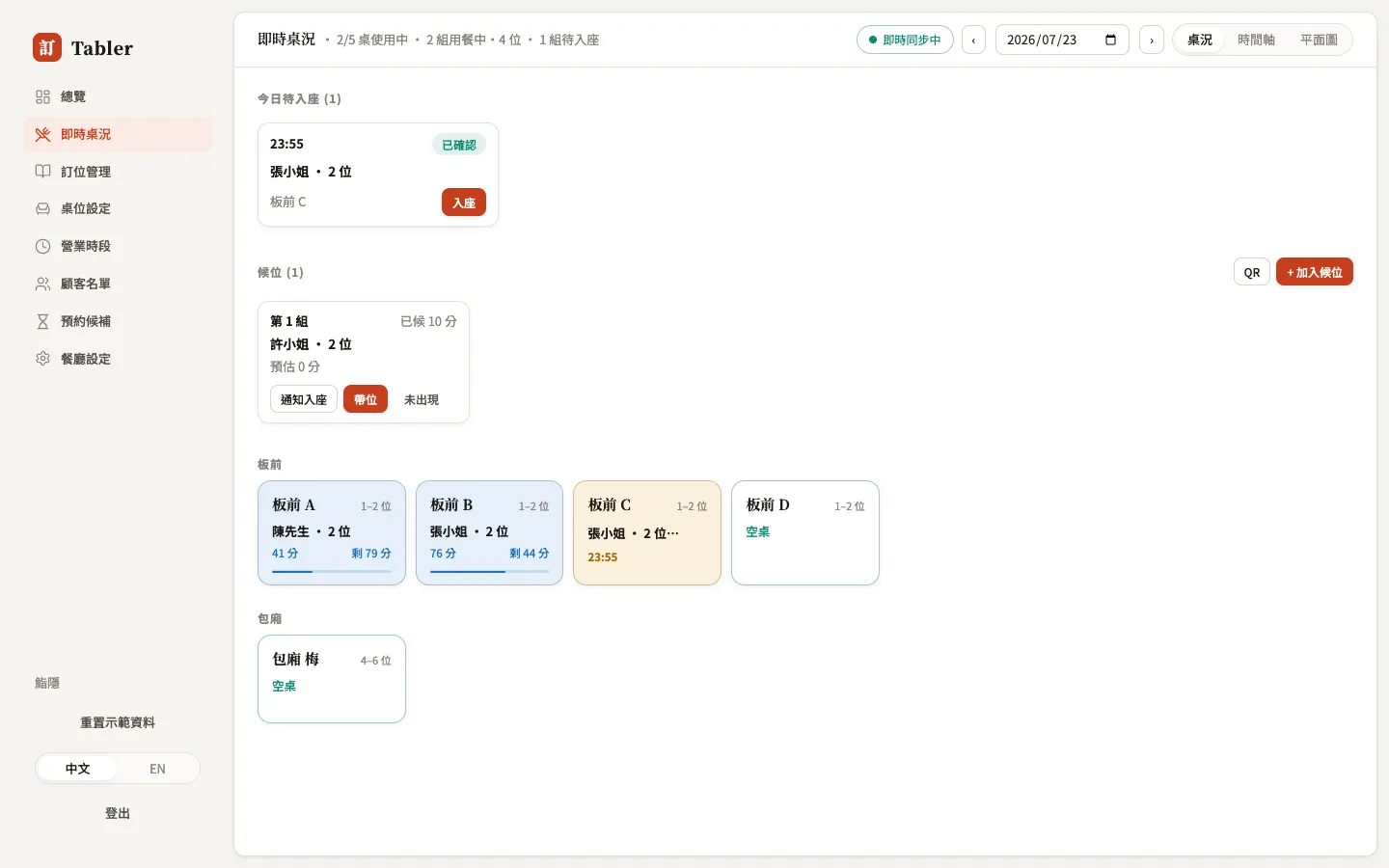
Each table is a card, and the color is its status:
- Seated — shows the guest’s name, party size, minutes dined, and minutes remaining, with a progress bar underneath; past the configured dining time it flags the overrun.
- Upcoming — tables with a booking inside the next 90 minutes light up early so you don’t give the table away.
- Needs cleaning — when guests leave, the table automatically enters needs-cleaning; tap 🧹 Mark cleaned once it’s reset.
- Blocked — a table temporarily out of service (broken leg, held for a buyout). Tap the card and choose ⛔ Block table; blocked tables are never auto-assigned to bookings.
- Open — free to seat, with a hint showing the table’s next booking time.
When a regular is seated, the card shows a ⭐ Regular badge with their average return rhythm — the floor knows to say hello before reaching the table.
A booked guest arrives: seat them
Up next today at the top lists the bookings about to arrive. When the party reaches the door:
- Find the booking and press Seat. If a table is already assigned they’re seated immediately; if not, a table picker opens with the best-fitting party sizes sorted first.
- Or tap any open table directly and seat someone from its “Reserved for this table” and “Waiting — no table yet” lists.
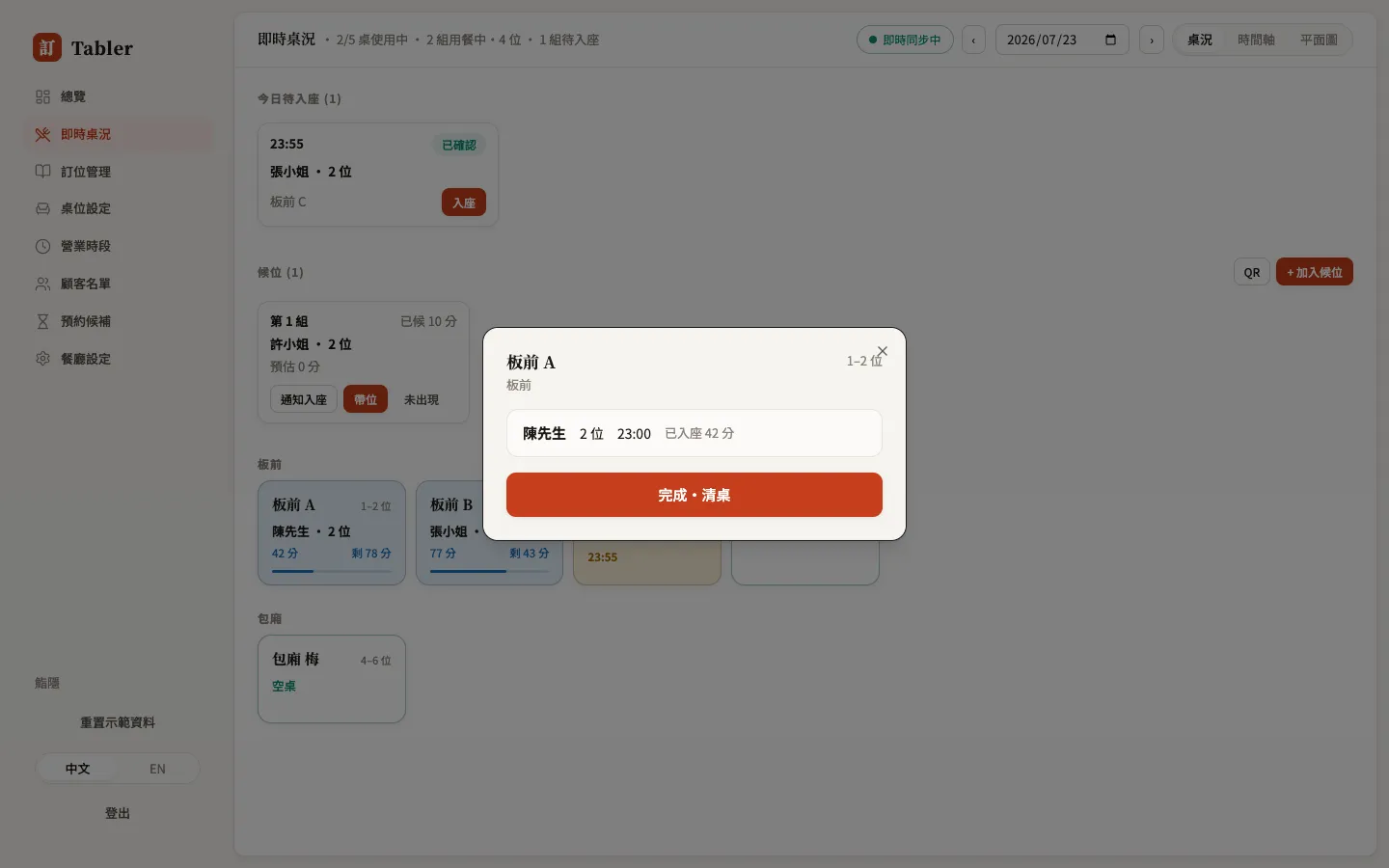
When the meal ends, tap the card → Finish & clear: the booking is marked completed, the guest’s visit count goes up by one, and the table enters needs-cleaning.
No booking? Seat a walk-in
Tap any open table → Seat walk-in, pick the party size (name and phone optional), press “Seat at…” and you’re done. If they leave a phone number, the guest starts accumulating a return history in Guests — worth training the floor to ask in passing.
Full house and nowhere to seat them? Use + Add to queue at the top right, or let guests scan the QR to queue themselves — see Walk-in queue.
Three views
Switch views at the top right to match the moment:
- Floor — the card view above; the everyday view for floor staff.
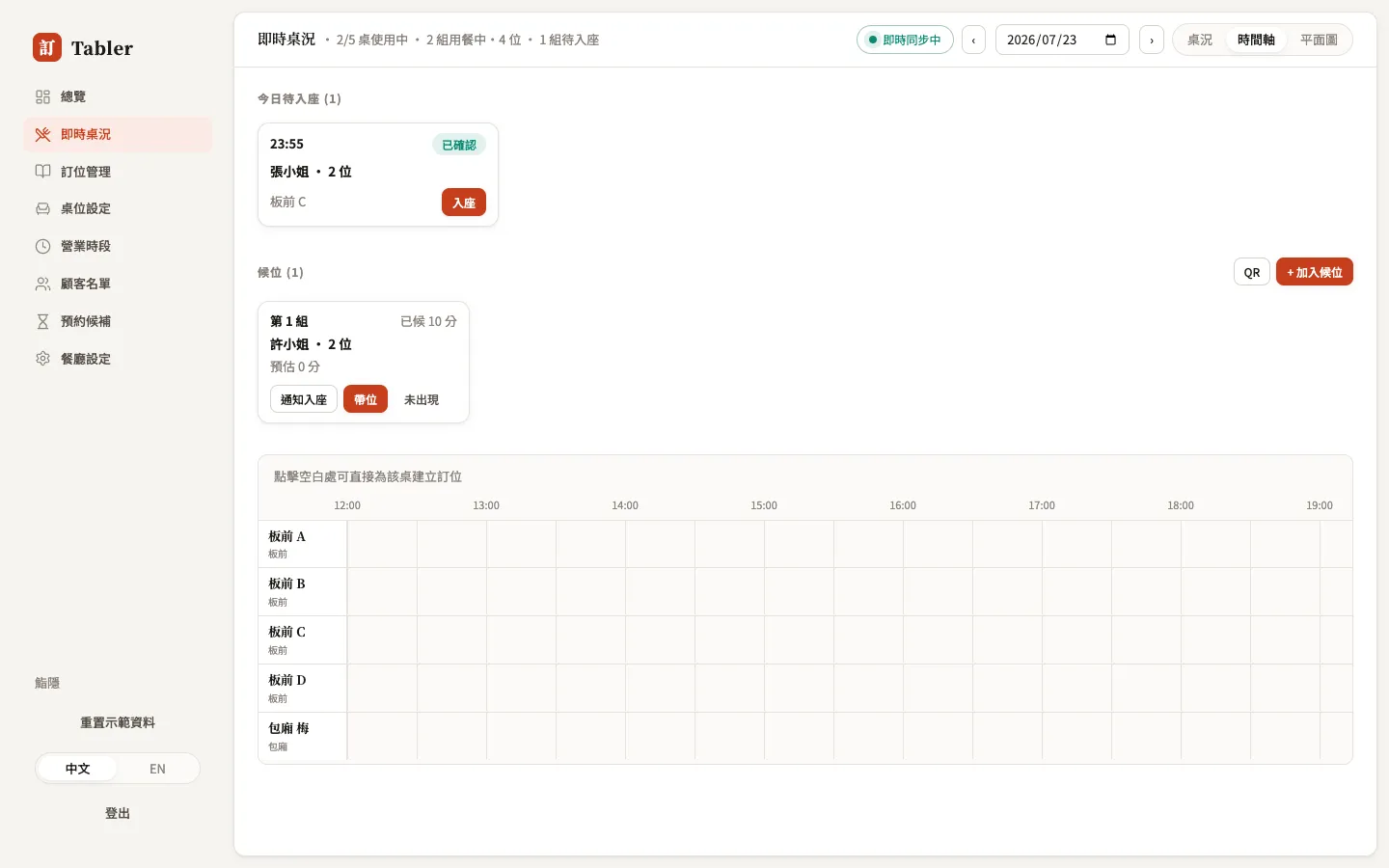
- Timeline — one lane per table, showing how the whole day’s bookings are laid out. Tap an empty slot to create a booking for that table at that time — the fastest way to take a phone booking.
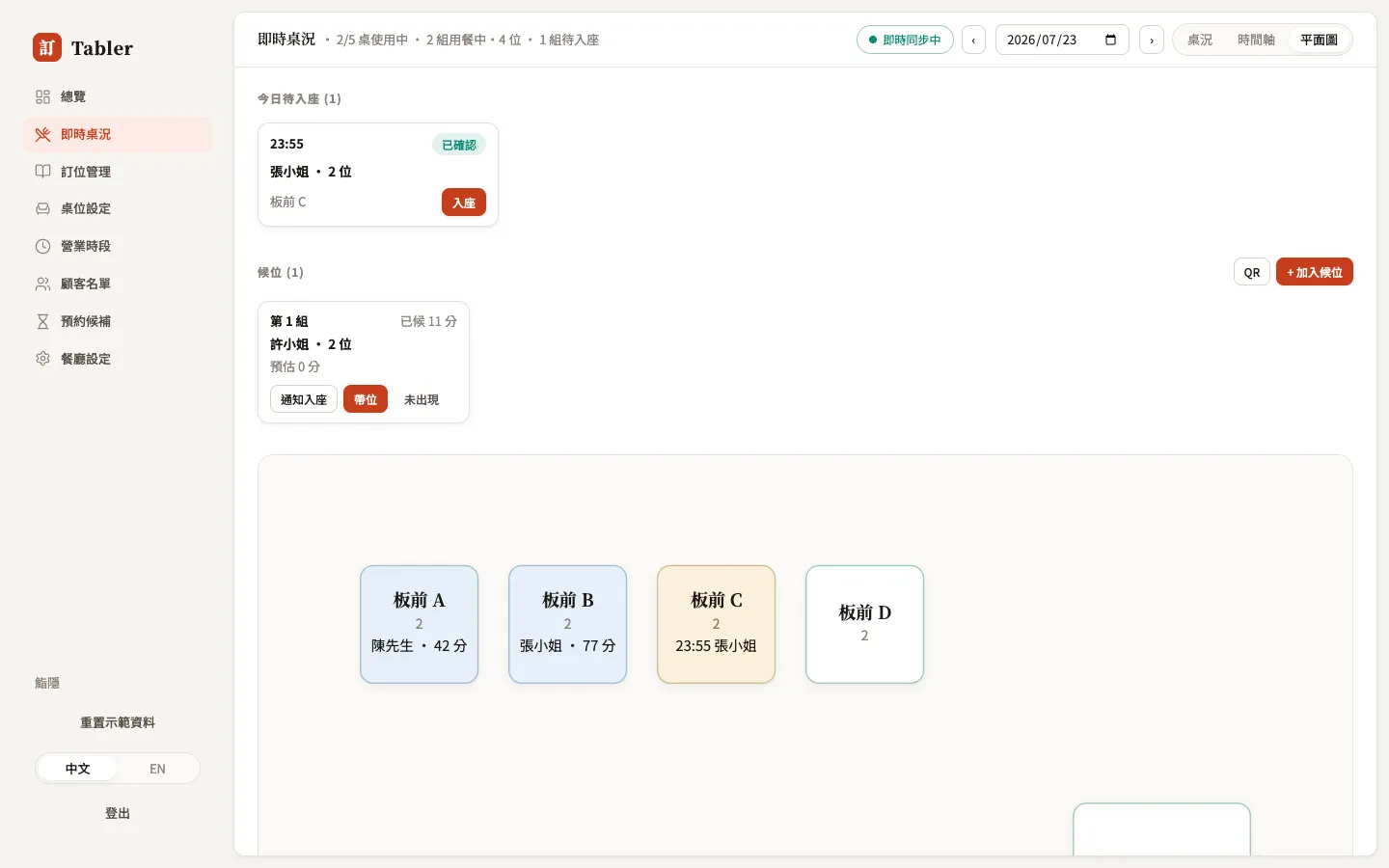
- Map — your real floor layout, exactly as arranged in Tables; matches the room’s actual flow, great on a tablet standing at the host stand.
Changing the date
The date next to the title pages backward and forward — review yesterday’s service or pre-assign tomorrow’s tables. The queue panel and the Seat button only appear on “today” — seating is always a right-now thing.