Every restaurant gets its own booking page:
https://tabler.pro/r/your-restaurant-slug. All the links and embed code live
in the back office under Settings → Marketing links, each with a copy
button:
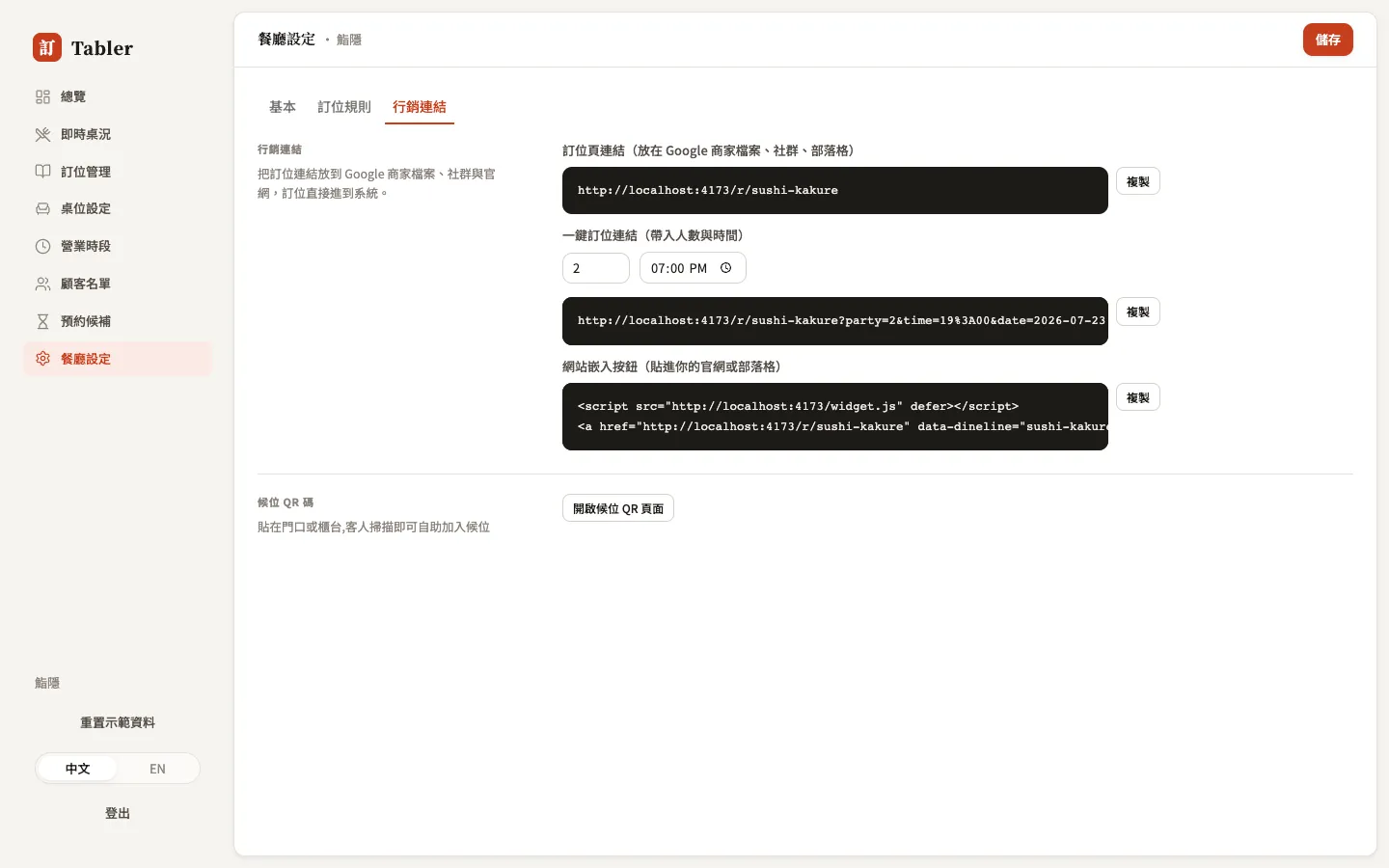
Put it on your channels
- Google Business Profile — add a “Reserve” link to your business info. Bookings arriving from Google are automatically tagged with source google.
- Instagram — the website field of your profile, or your link-in-bio tool.
- LINE Official Account — add it to your rich menu or auto-replies.
The one-click link can pre-fill party size and time (“two tonight”) — ideal for stories and event posts, dropping guests straight onto the confirmation step.
Embed it in your website or blog
Two lines of code put a booking button on any site:
<script src="https://tabler.pro/widget.js" defer></script>
<a href="https://tabler.pro/r/your-restaurant-slug"
   data-dineline="your-restaurant-slug" data-dl-party="2">Reserve now</a>
Pressing the button opens a booking window — guests complete the whole booking without leaving your site. The embed is also a plain link: with JavaScript off, readers go straight to your booking page and can book all the same.
What the guest sees
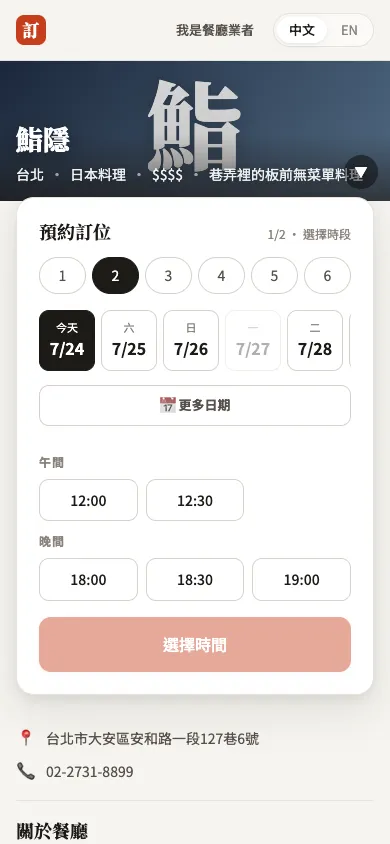
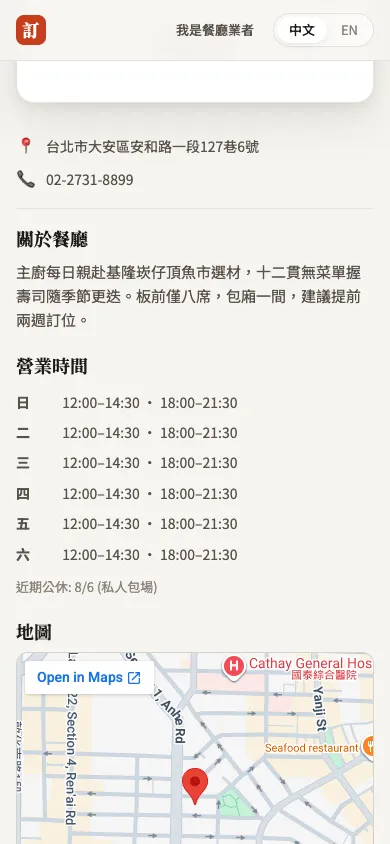
The booking page shows the introduction, hours, map, and upcoming closures you filled in under Settings, and booking takes two steps: pick a time → enter details.
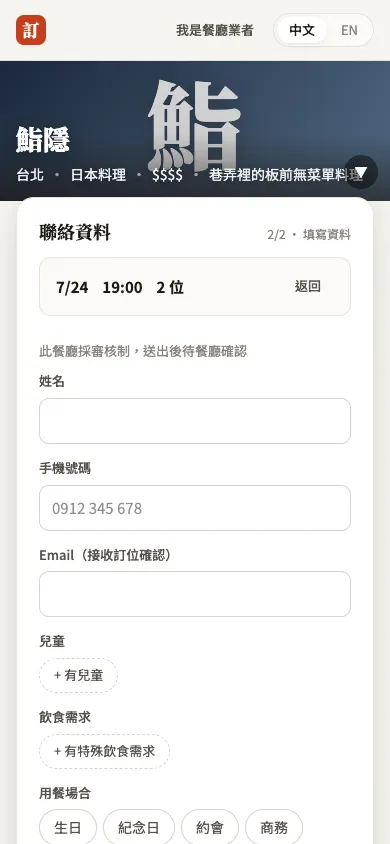
You decide the second step’s fields (children, dietary needs, and so on — see Settings → Booking form fields). Review-first restaurants show “the restaurant confirms each request”:
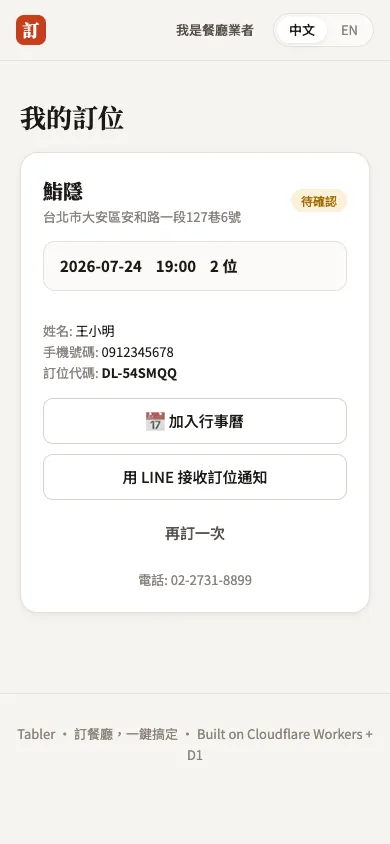
Once done, the guest gets a reference code, a calendar button, and a management link:
From then on the guest can return to their “My reservation” page from the confirmation email or LINE — add it to a calendar, self-cancel within the window you allow, or link LINE for notifications:
Closed days and full time slots simply can’t be selected; when a whole day is full and you’ve enabled the waitlist, guests see “Join the waitlist” instead.
Your restaurant also appears on the explore page at tabler.pro/explore, and the booking page itself carries structured data — when someone googles your restaurant’s name, the booking entry point can appear right in the results.